


Environmental variables are important for configuring development environments and storing sensitive information. They provide a flexible way to control application behavior without hardcoding values directly into the source code.
Daytona offers a streamlined method for setting, managing, and using environmental variables across various workspaces using the daytona env command. This simplifies configuration and enhances security especially when collaborating on projects.
This article will explain using the daytona env command to set and manage environmental variables within Daytona workspaces. You will learn how to set variables, create a workspace, and access these variables within a workspace.
Prerequisites
To successfully follow this tutorial, ensure the following tools are installed and properly set up on your system:
Daytona: A tool for streamlined development workflows.
Docker: For containerization and managing application dependencies.
Visual Studio Code: A code editor with support for extensions and debugging.
Set Environmental Variables
Before adding an environment variable to Daytona, ensure that Docker and your server are running. Start your server using:
Using the Command Line Interface (CLI), run the following command to define your environmental variables:
This will allow you to set multiple environmental variables in a single operation. You can also use the Text User Interface (TUI) by running:
This command will launch the TUI interface. Proceed to enter your environment variables in the following format:
After entering the variables, press Enter on your keyboard to save them.
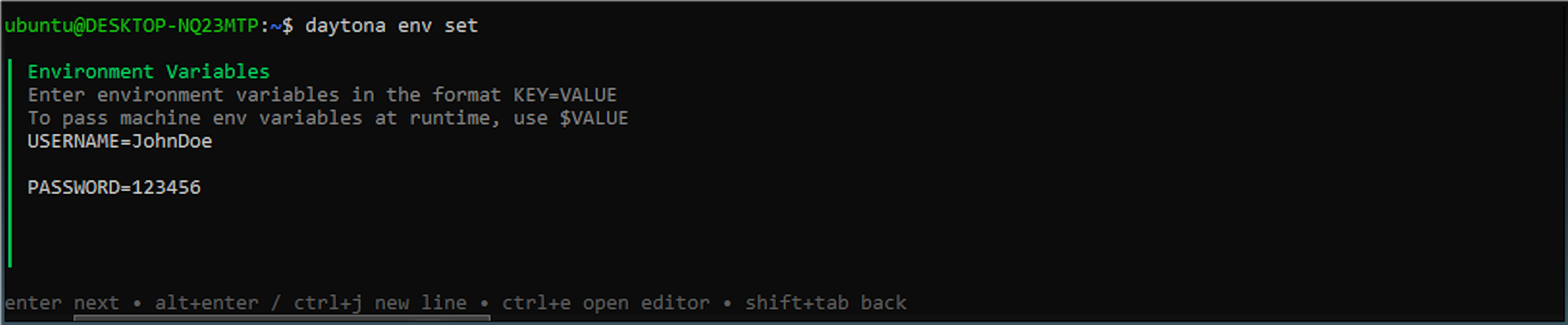
How daytona env set Works
The command stores environment variables at the workspace level. The variables are persistent across multiple workspaces and are accessible to all containers and development tools within the workspace. This provides a secure way to manage configuration without modifying project files.
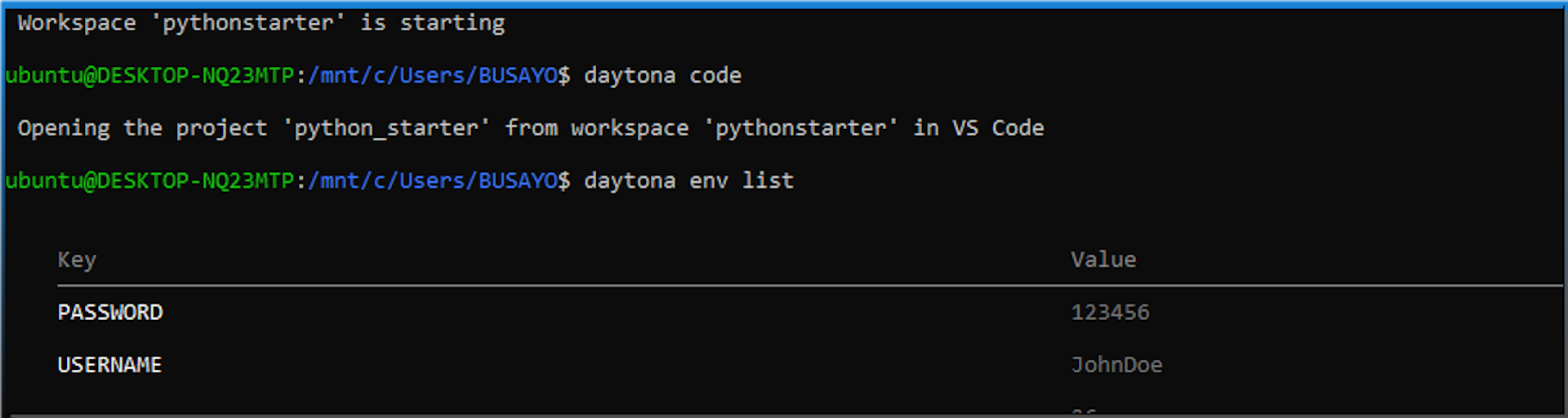
You can verify that the environmental variables have been saved by running:
You should see an output similar to the image below:
Create a New Workspace
You can create and open a new workspace using Daytona’s create command:
This command will clone the repository, set up the development environment, and open Visual Studio Code. The python_starter repository is a simple Python project pre-configured with a Dev Container.
Using Environmental Variables in Your Project
In your development environment, create a Python script to demonstrate accessing environment variables:
env_demo.py:
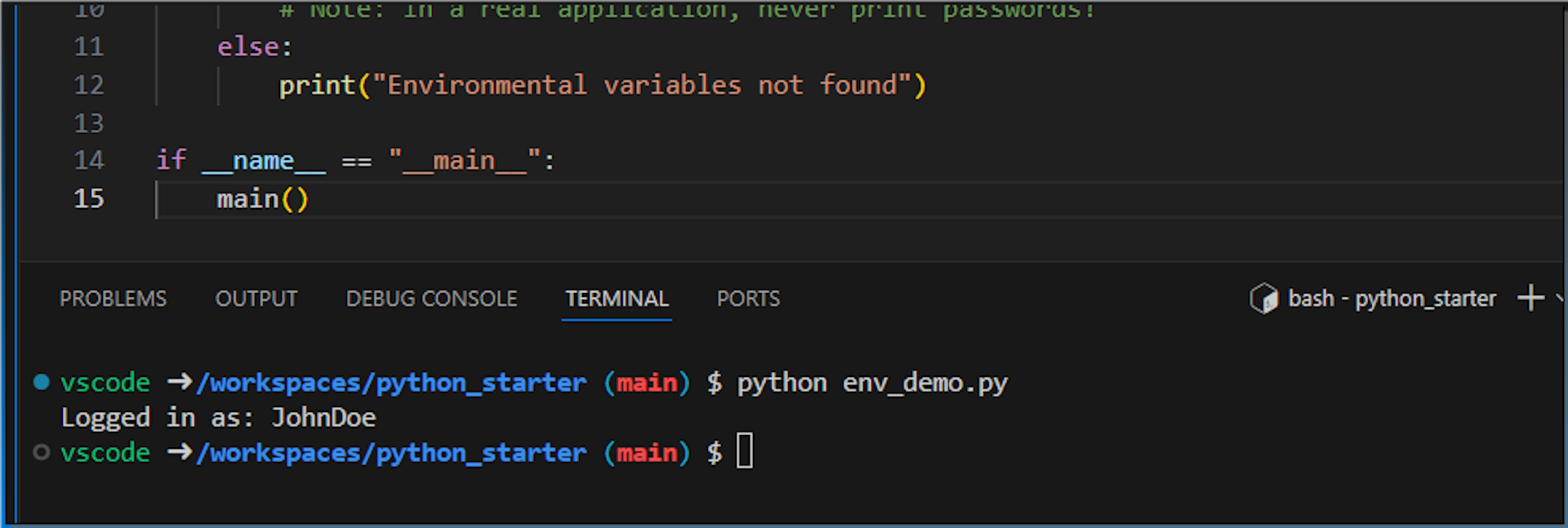
Run the script using:
Your output should look like this:
Best Practices
When working with environmental variables, it’s important to follow best practices to protect sensitive information and maintain an organized development environment. The following guidelines will help you manage environmental variables more securely across your projects.
Security:
Avoid storing sensitive information like passwords directly in environmental variables
Use secure secret management tools for production credentials
Consider using environment-specific configurations
Naming Conventions:
Use clear, descriptive variable names
Follow your team’s or project’s naming standards
Use uppercase for global constants
Troubleshooting
Ensure Daytona is up to date
Verify the environmental variables using
daytona env list
Conclusion
The daytona env command provides a simple and powerful method for managing environmental variables in your development workflow. Understanding how to set, list, and use these variables, developers can create more flexible and configurable development environments.